
常用linux命令
#上一条命令是否执行成功
$? 0成功 其他失败
#退出当前shell脚本
exit 2
文件相关命令
#查找文件
$ find . -name 'my*'
#删除当前目录下的所有文件
rm -rf * #注意:当前所处目录!!!
#解压
tar -zxvf XXX.gz -C 指定目录
#查看当前文件夹下的文件大小
du -sh *
#创建层级文件夹
mkdir -p xxx/xxx
#撤销上一步的操作
u
#恢复上一步被撤销的操作
ctrl+r
#粘贴到游标后
p
#粘贴到游标前
P
#删除当前行
dd
#删除当下向下几行
ndd
#从光标开始删除,到行尾
$ ctrl+k
#剪切光标所处位置到当前行末尾
d$
#复制选中的
y
#复制当前行
yy
#全选复制
ggvG或者ggVG
#全选删除
dG
#替换 g全局 c确认 s替换
$ :%s/oldstring/newstring/g
#移动到行尾
$
#重命名文件
$ rename oldfile newfile
$ mv oldfile newfile
#移动多个文件
mv a b c -t 新的目录
#显示行号
set nu
#查找安装位置
whereis pyton3
软件安装命令
解压安装 tar , ./configuare ,make ,make install
#查看软件是否安装
npm -qa |grep xxx
权限命令
#给shell脚本文件赋权
chmod 777 xxx
##执行sh文件 若权限,需要授权
./
sh
进程命令
#查看指定端口
netstat -lnp | grep 8080
#查看指定进程信息
ps -aux | grep tomcat
ps -ef | grep tomcat
lsof -i:pid
#kill 进程
kill -9 进程号

#命令行上传文件
rz

#查看操作系统版本
uname -a
防火墙命令
#参考链接
https://blog.csdn.net/qq_39176597/article/details/111939051

查看防火墙某个端口是否开放
firewall-cmd --query-port=80/tcp

开放防火墙端口80
firewall-cmd --zone=public --add-port=80/tcp --permanent

关闭80端口

firewall-cmd --zone=public --remove-port=80/tcp --permanent

配置立即生效
firewall-cmd --reload
查看防火墙状态
systemctl status firewalld

关闭防火墙
systemctl stop firewalld

打开防火墙
systemctl start firewalld

开放一段端口
firewall-cmd --zone=public --add-port=8121-8124/tcp --permanent

查看开放的端口列表
firewall-cmd --zone=public --list-ports

#永久关闭防火墙:
[root@CactiEZ ~]# systemctl disable firewald.service

#永久开启防火墙:
[root@CactiEZ ~]# systemctl enable firewald.service
禁用/启用IP
#iptables
参数-I是表示Insert(添加),-D表示Delete(删除)。后面跟的是规则,INPUT表示入站,...表示要封停的IP,DROP表示放弃连接。

#要封停一个IP,使用下面这条命令:
iptables -I INPUT -s xx.xx.xx.xx -j DROP

#要解封一个IP,使用下面这条命令:
iptables -D INPUT -s xx.xx.xx.xx -j DROP

#查看当前的IP规则表:
iptables --list
iptables -L

#清空封掉的IP地址
iptables --flush

#要添加IP段到封停列表中,使用下面的命令:
iptables -I INPUT -s 121.0.0.0/8 -j DROP

#firewall
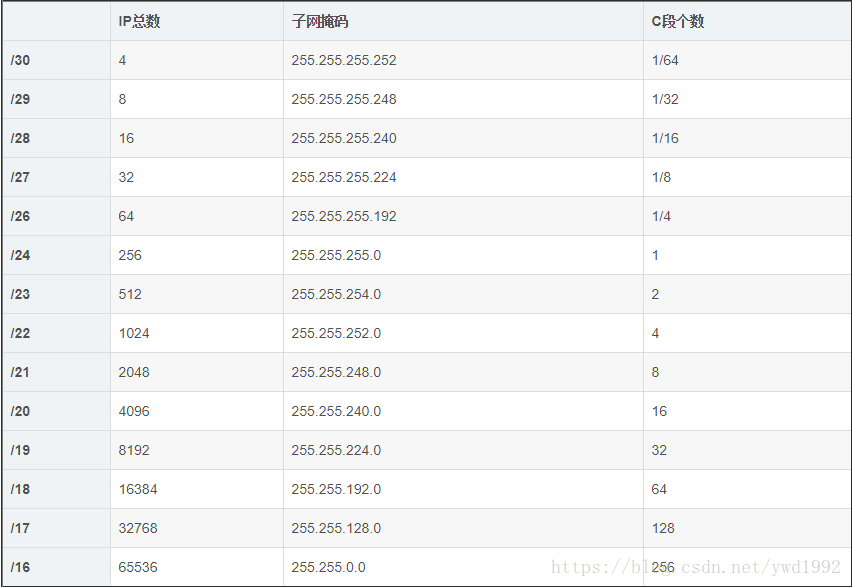
https://blog.csdn.net/ywd1992/article/details/80401630
#禁止IP(111.225.149.121)访问机器
firewall-cmd --permanent --add-rich-rule='rule family=ipv4 source address="111.225.149.121" drop'

#禁止一个IP段,比如禁止111.225..
firewall-cmd --permanent --add-rich-rule='rule family=ipv4 source address="111.225.0.0/16" drop'

firewall-cmd --permanent --add-rich-rule="rule family="ipv4" source address="10.0.0.0/24" port protocol="tcp" port="80" reject"
-----------------------------------------------------------------------------
 rule:详细版
      [family="ipv4|ipv6"]
      [source |destination] address="address[/mask]" [invert="True|yes"]
      [[service name="service name" ]| [port port="number_or_range" protocol="tcp|udp"] | [protocol value="协议名"] ]
      [ icmp-block name="icmptype name" ]
      [masquerade]
      [forward-port port="number_or_range" protocol="tcp|udp" to-port="number_or_range" to-addr="address"]
      [log [prefix=prefix text] [level=log level] limit value=rate/duration]
      [audit]
      [accept | reject [type="reject type"] | drop]
-----------------------------------------------------------------------------
#拒绝所有ping请求
firewall-cmd --permanent --add-rich-rule='rule protocol value=icmp drop'
端口命令
#参考链接
https://blog.csdn.net/qq_41675254/article/details/85208057

netstat命令各个参数说明如下:

  -t : (tcp)仅显示TCP相关选项

  -u :(UDP)仅显示UDP相关选项

  -l : 仅显示监听套接字(所谓套接字就是使应用程序能够读写与收发通讯协议(protocol)与资料的程序)

  -p : 显示进程标识符和程序名称,每一个套接字/端口都属于一个程序。

  -n : 不进行DNS轮询,显示IP(可以加速操作),拒绝显示别名,能显示数字的全部转化为数字

netstat -ntlp   //查看当前所有tcp端口

#查看一台服务器上面哪些服务及端口
netstat -lanp

#查看一个服务有几个端口。比如要查看mysqld
ps -ef |grep mysqld

#查看某一端口的连接数量,比如3306端口
netstat -pnt |grep :3306 |wc

#查看某一端口的连接客户端IP 比如3306端口
netstat -anp |grep 3306

netstat -an 查看网络端口

lsof -i :port,使用lsof -i :port就能看见所指定端口运行的程序,同时还有当前连接。

nmap 端口扫描
netstat -nupl  (UDP类型的端口)
netstat -ntpl  (TCP类型的端口)
netstat -anp 显示系统端口使用情况
打包
war
	build->build artifacts->build,默认war包,路径在out
	(1)web application:exploded 本地用,可修改
	(2)web application:archive √ 发布用,不可修改
jar maven->clean->packagr 默认是jar ,路径在out里面
	只能有主类的项目于可以运行,如spring需要有main方法
安装java
#查找java相关的列表
yum -y list java*
yum search jdk

#安装jdk
yum install java-11-openjdk.x86_64

#安装完成验证
[root@hzz-1019 downloads]# java -version
openjdk version "11.0.13" 2021-10-19 LTS
OpenJDK Runtime Environment 18.9 (build 11.0.13+8-LTS)
OpenJDK 64-Bit Server VM 18.9 (build 11.0.13+8-LTS, mixed mode, sharing)


#添加JAVAHOME
yum安装的默认路径/usr/lib/jvm
运行tomcat
-rw-r--r--. 1 root root 9455895 Jan 26 17:58 apache-tomcat-8.0.53.tar.gz
-rw-r--r--. 1 root root  805253 Jan 26 18:00 nginx-1.6.3.tar.gz
drwxr-xr-x. 2 root root       6 Jan 26 18:07 tomcat
[root@localhost tuaofei]# tar -zxvf apache-tomcat-8.0.53.tar.gz -C ./tomcat/

[root@localhost tuaofei]# cd tomcat/
[root@localhost tomcat]# ll
total 0
drwxr-xr-x. 9 root root 160 Jan 26 18:08 apache-tomcat-8.0.53
[root@localhost tomcat]# cd apache-tomcat-8.0.53/bin/
[root@localhost bin]# ll
total 836
-rw-r--r--. 1 root root  34873 Jun 29  2018 bootstrap.jar
-rw-r--r--. 1 root root  15912 Jun 29  2018 catalina.bat
-rwxr-xr-x. 1 root root  23353 Jun 29  2018 catalina.sh
-rw-r--r--. 1 root root   1647 Jun 29  2018 catalina-tasks.xml
-rw-r--r--. 1 root root  25145 Jun 29  2018 commons-daemon.jar
-rw-r--r--. 1 root root 207125 Jun 29  2018 commons-daemon-native.tar.gz
-rw-r--r--. 1 root root   2040 Jun 29  2018 configtest.bat
-rwxr-xr-x. 1 root root   1922 Jun 29  2018 configtest.sh
-rwxr-xr-x. 1 root root   8509 Jun 29  2018 daemon.sh
-rw-r--r--. 1 root root   2091 Jun 29  2018 digest.bat
-rwxr-xr-x. 1 root root   1965 Jun 29  2018 digest.sh
-rw-r--r--. 1 root root   3460 Jun 29  2018 setclasspath.bat
-rwxr-xr-x. 1 root root   3680 Jun 29  2018 setclasspath.sh
-rw-r--r--. 1 root root   2020 Jun 29  2018 shutdown.bat
-rwxr-xr-x. 1 root root   1902 Jun 29  2018 shutdown.sh
-rw-r--r--. 1 root root   2022 Jun 29  2018 startup.bat
-rwxr-xr-x. 1 root root   1904 Jun 29  2018 startup.sh
-rw-r--r--. 1 root root  49038 Jun 29  2018 tomcat-juli.jar
-rw-r--r--. 1 root root 408967 Jun 29  2018 tomcat-native.tar.gz
-rw-r--r--. 1 root root   4586 Jun 29  2018 tool-wrapper.bat
-rwxr-xr-x. 1 root root   5495 Jun 29  2018 tool-wrapper.sh
-rw-r--r--. 1 root root   2026 Jun 29  2018 version.bat
-rwxr-xr-x. 1 root root   1908 Jun 29  2018 version.sh

[root@localhost bin]# sh startup.sh
Using CATALINA_BASE:   /root/tuaofei/tomcat/apache-tomcat-8.0.53
Using CATALINA_HOME:   /root/tuaofei/tomcat/apache-tomcat-8.0.53
Using CATALINA_TMPDIR: /root/tuaofei/tomcat/apache-tomcat-8.0.53/temp
Using JRE_HOME:        /usr
Using CLASSPATH:       /root/tuaofei/tomcat/apache-tomcat-8.0.53/bin/bootstrap.jar:/root/tuaofei/tomcat/apache-tomcat-8.0.53/bin/tomcat-juli.jar
Tomcat started.

访问http://xxx.xxx.xx.xxx:8080

[root@localhost bin]# sh shutdown.sh
Using CATALINA_BASE:   /root/tuaofei/tomcat/apache-tomcat-8.0.53
Using CATALINA_HOME:   /root/tuaofei/tomcat/apache-tomcat-8.0.53
Using CATALINA_TMPDIR: /root/tuaofei/tomcat/apache-tomcat-8.0.53/temp
Using JRE_HOME:        /usr
Using CLASSPATH:       /root/tuaofei/tomcat/apache-tomcat-8.0.53/bin/bootstrap.jar:/root/tuaofei/tomcat/apache-tomcat-8.0.53/bin/tomcat-juli.jar

#参考该文档修改servce.xml
https://blog.csdn.net/Tritoy/article/details/81705759

#日志滚动运行
[root@localhost webapps]# sh ../bin/catalina.sh run
#正常运行,不显示日志
[root@localhost webapps]# sh ../bin/startup.sh
#日志位于logs里面的catalina.out

#jar包方式运行,日志重定向
<<<<<<< .mine
nohup java -jar jar包名.jar >日志文件名称.txt 2>&1 &
=======
nohup java -jar jar包名.jar >日志文件名称.txt &
>>>>>>> .r188

#从0开始安装tomcat
https://mirrors.cnnic.cn/

$ wegt https://mirrors.cnnic.cn/apache/tomcat/tomcat-8/v8.5.75/bin/apache-tomcat-8.5.75.tar.gz

#运行多台tomcat
https://blog.csdn.net/hzy3344520/article/details/105081177

#运行tomcat的3种方式
https://blog.csdn.net/IT_TIfarmer/article/details/110524285
(1)./startup.sh #当前会话启动
(2)./catalina.sh run #带日志的当前会话启动
(3) nohup ./startup.sh &
	nohup ./startup.sh > log.file 2>&1 &  #后台永久启动
>log.file是将command的输出重定向到log.file文件,即输出内容不打印到屏幕上,而是输出到log.file文件中。
2>&1 是将标准出错重定向到标准输出,这里的标准输出已经重定向到了log.file文件,即将标准出错也输出到log.file文件中。最后一个&, 是让该命令在后台执行。
试想2>1代表什么,2与>结合代表错误重定向,而1则代表错误重定向到一个文件1,而不代表标准输出;换成2>&1,&与1结合就代表标准输出了,就变成错误重定向到标准输出。

#tomcat部署war包时,访问路径如何取消包名前缀
https://blog.csdn.net/a624193873/article/details/103575732
安装redis
$ wget http://download.redis.io/releases/redis-6.0.6.tar.gz
$ mkdir redis
$ tar -vxzf redis-6.0.6.tar.gz -C redis
$ cd redis-6.0.6
$ make

#报错
server.c:5191:24: error: ‘struct redisServer’ has no member named ‘masterhost’
             if (!server.masterhost) {

#果当前的gcc版本不是5.3以上,执行下面命令更新gcc版本
#升级到 5.3及以上版本
yum -y install centos-release-scl
yum -y install devtoolset-9-gcc devtoolset-9-gcc-c++ devtoolset-9-binutils

scl enable devtoolset-9 bash

#再进入到redis的解压目录下的src目录,执行
make #即可编译成功

#报错
You need tcl 8.5 or newer in order to run the Redis test
#1.直接安装新的tcl,命令如下:
yum install -y tcl-devel
#2.清空之前的make的缓存命令:
make distclean
#3.重新make编译命令:
make
#4.结束后重新测试命令:
make test

#报错
Executing test client: wrong # args: should be "close channelId"

#安装tcl8.6

#启动
进入src目录
$ sh redis-server
#客户端
$ sh redis-cli
#后台启动
修改redis.conf文件内的daemonize yes
$ ./redis-server ./redis.conf
安装kafka
wget http://labfile.oss.aliyuncs.com/courses/859/kafka_2.10-0.10.2.1.tgz

tar -zxvf kafka_2.10-0.10.2.1.tgz

cd kafka_2.11-2.0.0/config/

#server.properties
broker.id=0
port=9092 #端口号
host.name=172.30.0.9 #服务器IP地址,修改为自己的服务器IP
log.dirs=/usr/local/logs/kafka #日志存放路径,上面创建的目录
zookeeper.connect=localhost:2181 #zookeeper地址和端口,单机配置部署,localhost:2181

#zookeeper.properties
mkdir /usr/local/kafka/zookeeper #创建zookeeper目录
mkdir /usr/local/kafka/log/zookeeper #创建zookeeper日志目录
cd /usr/local/kafka/config #进入配置目录
vi zookeeper.properties #编辑修改相应的参数

dataDir=/usr/local/kafka/zookeeper #zookeeper数据目录
dataLogDir=/usr/local/kafka/log/zookeeper #zookeeper日志目录
clientPort=2181
maxClientCnxns=100
tickTime=2000
initLimit=10
syncLimit=5

#kafkastart.sh
#!/bin/bash
#启动zookeeper
/root/tuaofei/kafka_2.11-2.0.0/bin/zookeeper-server-start.sh /root/tuaofei/kafka_2.11-2.0.0/config/zookeeper.properties &
sleep 3
#启动kafka
/root/tuaofei/kafka_2.11-2.0.0/bin/kafka-server-start.sh /root/tuaofei/kafka_2.11-2.0.0/config/server.properties &

#kafkastop.sh
#!/bin/bash
#启动zookeeper
/root/tuaofei/kafka_2.11-2.0.0/bin/zookeeper-server-stop.sh /root/tuaofei/kafka_2.11-2.0.0/config/zookeeper.properties &
sleep 3
#启动kafka
/root/tuaofei/kafka_2.11-2.0.0/bin/kafka-server-stop.sh /root/tuaofei/kafka_2.11-2.0.0/config/server.properties &

#测试kafka脚本
#参考链接
https://segmentfault.com/a/1190000020723761
https://www.jianshu.com/p/67f9b612dc3b
###############################################################
#!/bin/bash
kafka_input = "n"
while [[ $kafka_input != "y" ]]; do
        read -e -p "请选择:1)创建topic 2)查看topic 3)发送消息 4)消费消息 0)退出" user_input
        if [[ $user_input == "0" ]]; then exit;fi
        if [[ $user_input == "1" ]]; then

                #创建一个Topic,创建一个副本数为1,分区数为1的,名字为test的topic
                read -e -p "输入端口号:" zook_post
                read -e -p "输入要创建的副本数:" replication_factor
                read -e -p "输入要创建的分区数:" partitions
                read -e -p "输入要创建名称:" zook_name
                if [ $? -eq 0 ]; then
                        echo "创建topic完成!"
                        sleep 3
                else
                        echo "topic创建失败!"
                fi
        fi
        if [[ $user_input == "2" ]];then
                #查看topic
                /root/tuaofei/kafka_2.11-2.0.0/bin/kafka-topics.sh --list --zookeeper localhost:2181
                if [ $? -eq 0 ]; then
                        echo "查看topic"
                        sleep 3
                else
                        echo "查看topic失败!"
                fi
        fi
        if [[ $user_input == "3" ]]; then
                #发生消息
                /root/tuaofei/kafka_2.11-2.0.0/bin/kafka-console-producer.sh --broker-list hostname:9092 --topic test
                if [ $? -eq 0 ]; then
                        echo "已发送消息,准备消费消息"
                        sleep 3
                else
                        echo "发送消息失败!"
                fi
        fi
        if [[ $user_input == "4" ]]; then
                #消费消息
                /root/tuaofei/kafka_2.11-2.0.0/bin/kafka-console-consumer.sh --bootstrap-server hostname:9092 --topic test --from-beginning
                if [ $? -eq 0 ]; then
                        echo "已消费消息"
                        sleep 3
                else
                        echo "消费消息失败!"
                fi
        fi
done
###############################################################
安装并测试nginx负载均衡
wget http://learning.happymmall.com/nginx/linux-nginx-1.10.2.tar.gz
tar -zxvf linux-nginx-1.10.2.tar.gz

cd nginx-1.10.2/
./configure
#编译
make
---------------------------------------------------------------------
#报错
make: *** No rule to make target `build', needed by `default'.  Stop.
yum -y install make zlib-devel gcc-c++ libtool openssl openssl-devel
重新编译
---------------------------------------------------------------------
#安装
make install

#开启服务并测试
[root@localhost nginx-1.6.3]# cd /
[root@localhost /]# ls
bin  boot  dev  etc  home  lib  lib64  media  mnt  newfile  newFile  opt  proc  root  run  sbin  srv  sys  tmp  usr  var
[root@localhost /]# cd usr/
[root@localhost usr]# ls
bin  etc  games  include  lib  lib64  libexec  local  sbin  share  src  tmp
[root@localhost usr]# cd local/
[root@localhost local]# ls
bin  etc  games  include  lib  lib64  libexec  man  nginx  sbin  share  src
[root@localhost local]# cd nginx/
[root@localhost nginx]# ls
conf  html  logs  sbin
[root@localhost nginx]# cd sbin/
[root@localhost sbin]# ls
nginx

$ ./nginx
#默认80端口,即可访问

firewall-cmd --zone=public --add-port=80/tcp --permanent

# 命令含义:
--zone #作用域
--add-port=80/tcp  #添加端口,格式为:端口/通讯协议
--permanent   #永久生效,没有此参数重启后失效

# 重启防火墙
    systemctl stop firewalld.service
    systemctl start firewalld.service

# 查看端口是否开放
firewall-cmd --list-ports


#nginx.conf
--------------------------------------------------------------------
upstream testTomcat{
		#每个访问客户端固定一个后端服务器,防止session丢失
        #ip-hash;
        #web请求会被转发到连接数最少的服务器上
        least_conn;
        #设置分权,权重越高优先访问
        server 192.168.42.220:8888 weight=1;
        server 192.168.42.220:8887 weight=1;

        }

    server {
        listen       80;
        server_name  localhost;

        #charset koi8-r;

        #access_log  logs/host.access.log  main;

        location / {
            root   html;
            index  index.html index.htm;
            #使用test分配规则,自定义添加的upstream节点
            proxy_pass http://testTomcat/;
        }
------------------------------------------------------------------------------
#重启nginx
$ /usr/local/nginx/sbin/nginx -s reload
nginx无法访问,但是进程正常运行
可能是nginx没有添加到系统服务
在 /etc/init.d/下创建名为nginx的启动脚本
#!/bin/bash
#
# chkconfig: - 85 15
# description: Nginx is a World Wide Web server.
# processname: nginx
nginx=/usr/local/nginx/sbin/nginx
conf=/usr/local/nginx/conf/nginx.conf
case $1 in
start)
echo -n "Starting Nginx"
$nginx -c $conf
echo " done"
;;
stop)
echo -n "Stopping Nginx"
killall -9 nginx
echo " done"
;;
test)
$nginx -t -c $conf
;;
reload)
echo -n "Reloading Nginx"
ps auxww | grep nginx | grep master | awk '{print $2}' | xargs kill -HUP
echo " done"
;;
restart)
$0 stop
$0 start
;;
show)
ps -aux|grep nginx
;;
*)
echo -n "Usage: $0 {start|restart|reload|stop|test|show}"
;;
esac设置执行权限:chmod +x /etc/init.d/nginx
注册成服务:chkconfig --add nginx
设置开机启动:chkconfig nginx on
之后,就可以使用以下命令了
service nginx start
service nginx stop
service nginx restart
service nginx reload安装rz
http://www.ohse.de/uwe/software/lrzsz.html

wget http://www.ohse.de/uwe/releases/lrzsz-0.12.20.tar.gz
tar -xvf lrzsz-0.12.20.tar.gz && cd lrzsz-0.12.20
./configure && make && make install
#建立软连接(快捷方式)
ln -s /usr/local/bin/lrz /usr/bin/rz
ln -s /usr/local/bin/lsz /usr/bin/sz

yum install -y lrzsz
#文件发送到本地
sz filename
#文件上传到服务器
rz
安装mysql
#更新yum源
https://dev.mysql.com/downloads/repo/yum/
rpm -vih mysql80-community-release-el8-3.noarch.rpm
#检测yum是否安装成功
repolist  enabled | grep "mysql.*-community.*"
mysql-connectors-community MySQL Connectors Community
mysql-tools-community      MySQL Tools Community
mysql80-community          MySQL 8.0 Community Server

#查看mysql哪些源是否被禁用
yum repolist all | grep mysql
mysql-cluster-8.0-community        MySQL Cluster 8.0 Community          disabled
mysql-cluster-8.0-community-source MySQL Cluster 8.0 Community - Source disabled
mysql-connectors-community         MySQL Connectors Community           enabled
mysql-connectors-community-source  MySQL Connectors Community - Source  disabled
mysql-tools-community              MySQL Tools Community                enabled
mysql-tools-community-source       MySQL Tools Community - Source       disabled
mysql-tools-preview                MySQL Tools Preview                  disabled
mysql-tools-preview-source         MySQL Tools Preview - Source         disabled
mysql80-community                  MySQL 8.0 Community Server           enabled
mysql80-community-source           MySQL 8.0 Community Server - Source  disabled

yum-config-manager --disable mysql80-community       ##禁用8.0版本的
yum-config-manager --enable mysql56-community       ##启用5.6版本的(当然启用哪个版本你自己定)

#开始安装
yum install mysql-community-server

#报错
All matches were filtered out by modular filtering for argument: mysql-community-server
Error: Unable to find a match: mysql-community-server
#再次执行安装

service mysqld start        #开启MySQL服务    只要没有错误信息就表示已经正常启动了。
service mysqld stop        #关闭MySQL服务
service mysqld restart      #重启MySQL服务
service mysqld status      #查看服务状态

#临时密码
grep 'temporary password' /var/log/mysqld.log

[Note] [MY-010454] [Server] A temporary password is generated for root@localhost: =i.WyP.f*0*w
#使用临时密码进入
mysql -uroot -p=i.WyP.f*0*w
alter user 'root'@'localhost' identified by 'xxx';

#参考链接,禁用更新
https://www.cnblogs.com/xsge/p/13827288.html

#查看mysql版本
mysql -V

#创建数据库
CREATE DATABASE IF NOT EXISTS express default charset utf8mb4 COLLATE utf8mb4_general_ci;

#远程访问数据库
use mysql;
update user set host='%' where user='root';
flush PRIVILEGES;
tab命令补全
# yum install bash-completion//也可以使用通配符安装:yum install bash-c*

如果上述命令不行,可以试试下面这个命令
yum  upgrade

如果上述两个命令还是不行,可以将机器重启,或者重新登录
由于我实验时用的是scureCRT,所以我选择使用login命令重新登录,随后sudo -i 进入root模式,可以使用tab补全命令
$ login//重新登录
yum
#安装报错 https://blog.csdn.net/m0_48455997/article/details/115480814
error: rpmdb: BDB0113 Thread/process 16573/140310613138304 failed: BDB1507 Thread died in Berkeley DB library
error: db5 error(-30973) from dbenv->failchk: BDB0087 DB_RUNRECOVERY: Fatal error, run database recovery
error: cannot open Packages index using db5 -  (-30973)
error: cannot open Packages database in /var/lib/rpm
Error: Error: rpmdb open failed

#yum makecache报错
https://www.cnblogs.com/bpzblog/p/13918199.html
sshd修改默认端口
vim /etc/ssh/sshd_config
在#Port 22下面修改要添加的端口
systemctl restart sshd.service
宝塔linux镜像
#进入服务器获取账号密码和访问链接
sudo /etc/init.d/bt default
==================================================================
BT-Panel default info!
==================================================================
外网面板地址: xxx
内网面板地址: xxx
*以下仅为初始默认账户密码,若无法登录请执行bt命令重置账户/密码登录
username: xxx
password: xxx
If you cannot access the panel,
release the following panel port [8888] in the security group
若无法访问面板,请检查防火墙/安全组是否有放行面板[8888]端口
==================================================================

1.查看面板入口:/etc/init.d/bt default

2.关闭安全入口:rm -f /www/server/panel/data/admin_path.pl

#ftp问题
https://blog.csdn.net/qq_18932003/article/details/104750239
#安全组开发39000/40000 tcp端口
#防火墙开放39000-40000 tcp端口
#宝塔开发39000:40000 ftp端口
#加密改成明文
安装wordpress
#手动安装
http://cloud.yundashi168.com/archives/250
#使用宝塔linux安装
https://developer.aliyun.com/article/638852
安装npm
https://zhuanlan.zhihu.com/p/165514533安装Python
https://registry.npmmirror.com/binary.html?path=python/贡献者

更新日志
2026/4/5 03:39
查看所有更新日志
fb8bc-于